



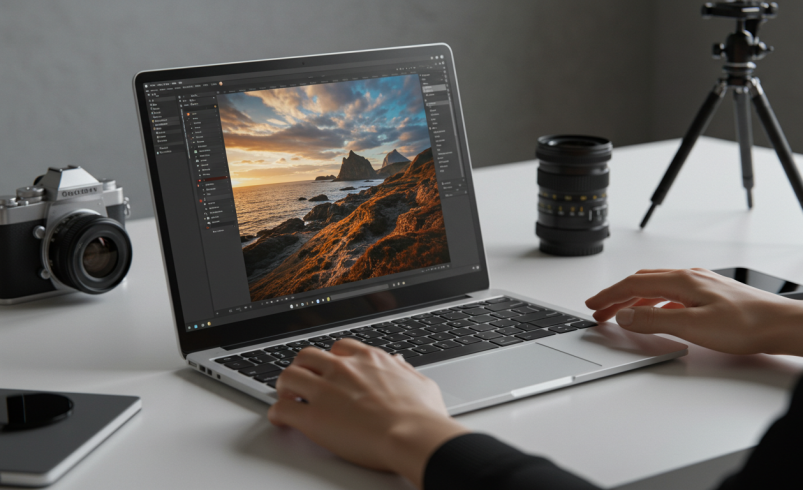

In an era dominated by visual communication, the ability to refine and enhance images is no longer exclusive to professional photographers. From casual social media posts to high-stakes commercial campaigns, compelling visuals capture attention and convey messages effectively. This widespread reliance on imagery has fueled a demand for sophisticated yet accessible photo editing software. The market offers a vast array of tools, ranging from simple mobile applications to complex desktop suites, each designed with different users and purposes in mind. Navigating this landscape to select the ideal photo editing software can be challenging. This article aims to demystify the options, guiding you through the essential considerations and top contenders to help you choose the best tool for your specific needs.
Which Photo Editing Software Is Right for You?
The right photo editing software depends on what you want to accomplish, how much editing experience you have, and how you prefer to work. A beginner who mainly edits social media photos will need very different tools from a professional photographer working with hundreds of RAW images.
Here is a quick way to narrow down your options:
| Your Main Need | Recommended Type | Best Options |
| Beginner-friendly editing | Easy-to-use editor | Lightroom, Luminar Neo, Canva |
| Professional photo editing | Advanced desktop software | Photoshop, Affinity |
| RAW photo processing | RAW editor | Lightroom, Capture One, DxO PhotoLab |
| Photo organization + editing | Photo management and editing | Lightroom, Capture One |
| Advanced retouching and compositing | Pixel-based editor | Photoshop, Affinity, GIMP |
| Fast AI-powered editing | AI photo editor | Luminar Neo and other AI-focused tools |
| Batch editing | Workflow-focused editor | Lightroom, Capture One |
| Free photo editing | Free/open-source editor | GIMP, Photopea |
| Social media content | Online/mobile editor | Canva, Lightroom Mobile, Pixlr |
| Mobile photo editing | Mobile editing app | Lightroom Mobile, Snapseed, VSCO |
| Studio photography | Professional RAW/tethered workflow | Capture One |
| No-subscription preference | Non-subscription option | Check current licensing before purchase |
The table is only a starting point. Your ideal choice also depends on your photography type, file format, editing workflow, computer or mobile device, and budget. The sections below explain these factors in more detail so you can make a more informed decision.
Identifying Your Photo Editing Needs
Before exploring specific applications, it’s crucial to understand your own requirements. The “best” photo editing software is subjective; it’s the one that aligns perfectly with your skill level, project scope, and budget.
Understanding User Levels: From Novice to Professional
Your experience level significantly influences which photo editing software will serve you best. Different tools cater to different proficiencies:
• Casual Users: Individuals who occasionally crop, resize, or apply basic filters to photos for personal use or social media. They prioritize simplicity and speed. For them, an easy photo editing software or a basic mobile app is often sufficient.
• Hobbyists/Enthusiasts: Those with a passion for photography who want to improve their images beyond basic adjustments. They might experiment with color grading, minor retouching, and creative effects. They need more control but might not require every professional feature. Many look for the best photo editing software for beginners that offers room to grow.
RAW vs JPEG: Which Format Is Right for You?
Before choosing photo editing software, it is important to understand the difference between RAW and JPEG image files. The format you use can affect how much control you have during editing and which software features you need.
What Is a RAW File?
A RAW file contains much more original image data captured by your camera sensor. Unlike a JPEG, it is not heavily processed or compressed by the camera. This gives you greater flexibility when adjusting exposure, white balance, highlights, shadows, colors, and other image settings during editing.
RAW files are especially useful for photographers who want maximum control over the final appearance of their images. They are commonly preferred for professional photography, landscapes, portraits, weddings, and situations with challenging lighting.
However, RAW files are larger than JPEGs and usually require dedicated photo editing software to process and export them into commonly used formats.
What Is a JPEG File?
JPEG is a processed and compressed image format that is widely supported by computers, phones, websites, and social media platforms. Because the camera has already processed the image, JPEG files are generally ready to share with little or no additional editing.
JPEG files are smaller than RAW files, making them convenient for everyday photography, social media, websites, and quick sharing. However, they contain less original image data, so making major adjustments to exposure, shadows, highlights, or color can result in a noticeable loss of quality.
RAW vs JPEG: Which Should You Choose?
| Feature | RAW | JPEG |
| Image data | More original camera data | Processed and compressed |
| Editing flexibility | Excellent | More limited |
| File size | Larger | Smaller |
| Ready to share | Usually requires processing | Usually ready to share |
| Best for | Professional and detailed editing | Every day and quick-use photography |
| Storage requirements | Higher | Lower |
If you regularly make detailed adjustments to your photographs, shoot in challenging lighting, or want maximum control over image quality, RAW is generally the better choice. If you mainly take photos for quick sharing, social media, or everyday use, JPEG may be more convenient.
Your choice of file format should also influence your choice of photo editing software. Photographers who work primarily with RAW files should look for software with strong RAW processing, color correction, noise reduction, and non-destructive editing capabilities.
• Professional Photographers/Designers: Individuals whose livelihood depends on high-quality image manipulation. They require advanced features like non-destructive editing, precise masking, complex compositing, and extensive RAW file support. Their choice of photo editing software must meet industry standards for output quality and workflow efficiency.
Core Features Every Editor Should Consider
Regardless of your skill level, certain functionalities are fundamental to effective photo editing software:
• Non-Destructive Editing: This allows you to make changes to an image without permanently altering the original pixel data. It’s crucial for flexibility and experimentation.
• RAW File Support: For photographers, the ability to edit RAW files (unprocessed sensor data) is paramount, offering maximum control over exposure, color, and detail.
• Layer-Based Editing: Essential for complex manipulations, layers allow you to stack multiple images, adjustments, and effects independently, providing immense flexibility.
• Selection Tools: Precise tools for isolating specific areas of an image are vital for targeted adjustments and compositing.
• Color Correction & Grading: Features for adjusting white balance, exposure, contrast, saturation, and hue are standard. Advanced tools offer color grading for stylistic effects.
• Retouching Tools: Spot healing, cloning, and blemish removal tools are necessary for portrait and product photography.
• AI-Powered Enhancements: Increasingly common, AI features can automate tasks like sky replacement, noise reduction, and object selection, speeding up workflows.
RAW Editors vs Pixel Editors: What’s the Difference?
One of the most important decisions when choosing photo editing software is understanding the difference between a RAW editor and a pixel editor. Although both can improve photographs, they are designed for different types of editing.
What Is a RAW Editor?
RAW editors are designed primarily for processing and enhancing photographs captured in RAW format. They allow you to adjust settings such as exposure, white balance, highlights, shadows, contrast, color, sharpness, and noise without permanently changing the original image.
Popular examples include Adobe Lightroom, Capture One, and DxO PhotoLab.
RAW editors are particularly useful when you need to edit large numbers of photographs efficiently. Features such as presets, batch editing, photo organization, and non-destructive adjustments can make them ideal for wedding, event, landscape, and professional photography workflows.
What Is a Pixel Editor?
Pixel editors provide more detailed control over individual areas and elements of an image. They are designed for advanced retouching, compositing, manipulation, and creative editing.
Adobe Photoshop, Affinity, and GIMP are examples of pixel-based editing software.
Pixel editors are useful when you need to remove or replace objects, combine multiple images, work with layers and masks, create detailed selections, or perform advanced portrait and product retouching.
RAW Editor vs Pixel Editor
| Feature | RAW Editor | Pixel Editor |
| Main purpose | RAW processing and photo enhancement | Detailed image manipulation |
| Best for | Photography workflows | Retouching and compositing |
| RAW processing | Excellent | Varies by software |
| Batch editing | Usually strong | Usually limited |
| Photo organization | Often included | Usually limited |
| Layers | Limited or workflow-dependent | Advanced |
| Masking | Strong in modern editors | Advanced and precise |
| Object manipulation | Limited | Excellent |
| Advanced compositing | Limited | Excellent |
| Best suited for | Photographers | Retouchers, designers, and advanced editors |
Do You Need Both?
You do not always have to choose between a RAW editor and a pixel editor. Many photographers use both because they serve different purposes.
For example, you might use a RAW editor to organize a photo collection, correct exposure and color, apply presets, and process multiple images. You can then move selected photographs into a pixel editor for detailed retouching, object removal, or complex compositing.
The best choice therefore depends on your workflow. If you mainly need to process and organize photographs, a RAW editor may be enough. If you regularly perform detailed retouching or combine multiple images, a pixel editor will be more suitable. For professional workflows, using both can provide the flexibility of efficient RAW processing and precise image manipulation.
Project Scope: Simple Adjustments vs. Complex Composites
The complexity of your typical editing tasks also dictates the necessary capabilities of your photo editing software:
• Basic Adjustments: If you primarily need to crop, rotate, adjust brightness/contrast, or apply simple filters, many entry-level or free tools will suffice.
• Advanced Photo Manipulation: For tasks involving combining multiple images, intricate masking, detailed retouching, or graphic design integration, you’ll need robust, feature-rich software with layer support and advanced selection capabilities.
• Batch Processing: If you frequently process large numbers of images (e.g., event photography), software with efficient batch editing features will be a significant time-saver.
Best Photo Editing Software for Different Types of Photography
The best photo editing software can vary depending on the type of photography you do. A landscape photographer may need powerful RAW processing and noise reduction, while a wedding photographer may care more about batch editing and photo organization. Choosing software based on your specific photography workflow can help you avoid paying for features you rarely use.
Portrait Photography
Portrait photographers should look for software with strong masking, skin retouching, color correction, and selective adjustment tools. AI-powered portrait enhancements can also speed up tasks such as skin smoothing and background adjustments.
Look for: RAW processing, masking, retouching, layers, color grading, and portrait enhancement tools.
Wedding and Event Photography
Wedding and event photographers often need to process hundreds or thousands of photographs. For this type of workflow, batch editing, presets, photo organization, fast culling, and consistent color adjustments are particularly important.
Look for: Batch processing, presets, cataloging, RAW support, synchronization, and efficient export tools.
Landscape Photography
Landscape photographers usually benefit from software that provides detailed control over exposure, highlights, shadows, color, and dynamic range. Noise reduction, HDR processing, masking, and lens correction can also be valuable.
Look for: Advanced RAW processing, HDR tools, masking, noise reduction, lens corrections, and color grading.
Product Photography
Product photographers need precise editing tools for removing backgrounds, correcting colors, cleaning up imperfections, and making detailed adjustments to individual objects.
Look for: Precise selections, background removal, layers, masking, retouching, color accuracy, and batch processing.
Real Estate Photography
Real estate photographers often work with difficult lighting conditions and may need to combine exposures to create balanced interior and exterior images. Perspective correction and lens correction can also be important.
Look for: HDR or exposure blending, RAW processing, perspective correction, lens correction, batch editing, and masking.
Social Media and Content Creation
If your primary goal is creating images for Instagram, Facebook, websites, or other social platforms, you may not need advanced professional software. Ease of use, templates, resizing, filters, quick adjustments, and mobile access may be more valuable.
Look for: Simple editing tools, templates, resizing, filters, mobile apps, fast export, and social media-friendly formats.
Travel and Everyday Photography
Travel and everyday photographers usually need a balance between ease of use and editing flexibility. Software that can quickly improve exposure, color, cropping, and composition without requiring a complicated workflow is often the most practical choice.
Look for: Easy RAW processing, presets, automatic enhancements, organization tools, mobile compatibility, and fast export.
Professional Commercial Photography
Commercial photographers often require the highest level of control and consistency. Their workflow may include RAW processing, advanced retouching, color management, tethered shooting, complex masking, and high-resolution output.
Look for: Professional RAW processing, layers, advanced masking, color management, tethering, batch processing, retouching, and reliable export options.
How to Choose Based on Your Photography
Instead of choosing software simply because it is popular, consider what you photograph most often and which tasks take up the most time in your workflow.
If you primarily process large numbers of photographs, prioritize organization and batch editing. If you create highly retouched or composite images, focus on layers, masking, and advanced pixel editing. If you mainly create content for social media, an easy online or mobile editor may be more practical than a professional desktop suite.
Choosing software around your actual photography needs can help you get better results while keeping your editing workflow efficient.
Consider Your Photo Editing Workflow
Choosing photo editing software is not only about the features it offers. You should also consider how the software fits into your complete editing workflow. A good workflow can save time, keep your edits consistent, and make it easier to manage large collections of photographs.
1. Import Your Photos
The first step is transferring your images from your camera, phone, or storage device to your computer or editing platform. If you regularly work with large photo collections, look for software that makes importing and organizing images simple and efficient.
2. Cull and Select Your Best Images
Professional photographers often take hundreds or thousands of photographs during a single session. Culling allows you to quickly review your images and remove duplicates, blurry photographs, or unwanted shots before spending time editing them.
Software with ratings, flags, star systems, previews, and fast image browsing can make this stage much easier.
3. Organize Your Photo Library
If you have a large collection of photographs, organization becomes increasingly important. Features such as folders, albums, keywords, tags, ratings, and searchable catalogs can help you find specific images quickly.
For photographers with extensive libraries, photo management can be just as important as editing capabilities.
4. Process Your RAW Files
If you photograph in RAW format, the next stage is usually adjusting exposure, white balance, highlights, shadows, contrast, color, and other image characteristics.
A strong RAW editor should provide non-destructive editing so that you can experiment with different adjustments without permanently changing the original file.
5. Apply Presets and Batch Edits
When working with multiple photographs from the same event or photoshoot, you may want to apply similar adjustments to many images. Presets and batch editing can significantly reduce repetitive work.
This feature is particularly valuable for wedding, event, travel, and commercial photographers who need consistent results across large numbers of images.
6. Perform Detailed Retouching
After basic adjustments, selected photographs may require more detailed editing. This can include removing unwanted objects, correcting skin imperfections, replacing backgrounds, or combining multiple images.
For these tasks, software with advanced layers, masks, selections, cloning, healing, and compositing tools can be especially useful.
7. Export Your Finished Images
The final step is exporting your edited photographs in the appropriate format and size. Your requirements may differ depending on whether the images are intended for social media, websites, digital portfolios, printing, or professional delivery.
Look for software that provides flexible export settings, including file format, image dimensions, resolution, quality, and metadata options.
8. Back Up Your Work
A reliable workflow should also include backups. Losing original photographs or completed edits can be costly and difficult to recover.
Consider software and storage solutions that work well with your preferred backup system, whether you use local drives, external storage, or cloud-based services.
Choosing Software Based on Your Workflow
Before choosing a photo editing program, think about how often you edit, how many images you typically process, and which stages of the workflow take the most time.
If you edit a small number of photographs occasionally, a simple editor may be all you need. If you regularly work with hundreds or thousands of images, prioritize software with strong organization, culling, presets, batch processing, and efficient export features.
The best photo editing software should not only produce high-quality results but should also make your entire editing process faster, more organized, and easier to manage.
A Closer Look at Top Photo Editing Software Categories
The market for photo editing software can be broadly categorized based on functionality, pricing, and accessibility.
Professional-Grade Desktop Solutions
These are the industry workhorses, offering unparalleled control and a comprehensive feature set. Examples include Adobe Photoshop, Adobe Lightroom, and Capture One. They are typically subscription-based and require powerful hardware, targeting professional photographers, retouchers, and graphic designers who demand the highest quality and most extensive capabilities from their photo editing software.
User-Friendly & Affordable Desktop Alternatives
For users seeking powerful features without the subscription model or the steep learning curve of professional suites, several excellent alternatives exist. Software like Affinity Photo, Luminar Neo, and Corel PaintShop Pro offer a strong balance of functionality and cost-effectiveness. These are often considered affordable photo editing software options, providing many advanced features at a one-time purchase price, making them appealing to serious hobbyists and budget-conscious professionals.
Free Photo Editing Software: Powerful Options Without the Price Tag
Not every user needs to invest in paid software. There are remarkably capable free photo editing software options available. GIMP (GNU Image Manipulation Program) stands out as a robust open-source alternative to Photoshop, offering extensive features for image manipulation, compositing, and retouching. Paint.NET (for Windows) provides a simpler, yet powerful, layer-based editing experience. Photopea, a browser-based tool, mimics Photoshop’s interface and functionality, making it a strong contender for those seeking a free, accessible solution.
Online Photo Editor Platforms for Quick Edits
For convenience and quick, browser-based edits, an online photo editor is an excellent choice. Platforms like Canva, Fotor, and Pixlr offer intuitive interfaces, template libraries, and basic to intermediate editing tools directly in your web browser. They are ideal for social media graphics, quick touch-ups, and users who prefer not to download software. While powerful, they typically rely on an internet connection and may have limitations compared to desktop applications.
Photo Editing Apps for Mobile Creativity
With smartphone cameras becoming increasingly sophisticated, photo editing apps have become indispensable for on-the-go adjustments. Popular choices like Adobe Lightroom Mobile, Snapseed, VSCO, and PicsArt offer a range of features from basic cropping and filters to advanced color grading and selective adjustments. These apps are designed for touch interfaces, making them intuitive for mobile users and perfect for quick sharing.
How to Compare Photo Editing Software in 2026
Photo editing software changes frequently, with new features, AI tools, pricing plans, and platform support being introduced over time. When comparing different programs, it is important to look beyond the number of features and consider how each option fits your actual editing workflow.
Adobe Photoshop
Best for: Advanced photo manipulation, retouching, compositing, and graphic design.
Photoshop is designed for users who need precise control over individual elements of an image. Its extensive selection, masking, layer, retouching, and compositing tools make it suitable for professional photographers, designers, and advanced editors.
Key strengths: Advanced layers and masks, detailed retouching, compositing, extensive creative tools, and a large ecosystem of tutorials and integrations.
Potential limitation: Its large feature set can create a steeper learning curve for beginners, and its subscription-based model may not suit users looking for a one-time purchase.
Adobe Lightroom
Best for: RAW processing, photo organization, and batch editing.
Lightroom is particularly useful for photographers who need to manage and edit large collections of photographs. It combines photo organization with non-destructive editing and provides tools for exposure, color, masking, presets, and batch adjustments.
Key strengths: RAW processing, cataloging, presets, batch editing, non-destructive workflow, and synchronization across supported devices.
Potential limitation: It is not designed to replace a full pixel editor for highly complex compositing and advanced image manipulation.
Affinity
Best for: Advanced image editing and users looking for an alternative to traditional subscription-based workflows.
Affinity provides professional-level image editing capabilities, including layers, selections, masks, retouching, and RAW-related workflows. It can be particularly appealing to users who want detailed editing tools without relying entirely on the Adobe ecosystem.
Key strengths: Professional editing tools, layers, masking, selections, retouching, and strong control over image manipulation.
Potential limitation: Its workflow and feature set differ from Photoshop, so users moving between the two may need some adjustment.
Capture One
Best for: Professional photographers, RAW processing, studio workflows, and tethered shooting.
Capture One is known for its professional RAW processing and color-management capabilities. It can be especially useful for photographers who need consistent results and efficient workflows when working with large collections of high-quality images.
Key strengths: RAW processing, color control, photo organization, tethered workflows, and professional image management.
Potential limitation: Its advanced features may be more than casual users need, and the cost can be difficult to justify for photographers with simple editing requirements.
Luminar Neo
Best for: Fast, AI-assisted photo enhancement and creative editing.
Luminar Neo focuses heavily on simplifying complex editing tasks through automated and AI-assisted tools. It can be a good option for photographers who want attractive results without spending extensive time on manual adjustments.
Key strengths: AI-assisted enhancements, creative effects, portrait tools, sky and background adjustments, and an approachable interface.
Potential limitation: Users who require highly precise, pixel-level control may prefer a more advanced editor such as Photoshop or another professional pixel-editing application.
GIMP
Best for: Free desktop photo editing and users who want an open-source alternative.
GIMP provides a broad selection of image manipulation tools without requiring a traditional paid license. It supports layers, masks, selections, filters, and other advanced editing functions.
Key strengths: Free to use, open-source, customizable, and suitable for a wide range of image manipulation tasks.
Potential limitation: The interface and workflow may take more time to learn compared with some commercial alternatives.
Photopea
Best for: Browser-based editing and users who want a convenient alternative without installing desktop software.
Photopea runs in a web browser and provides many familiar editing concepts, including layers, selections, masks, and common image formats.
Key strengths: Browser-based access, convenient workflow, broad format support, and accessibility across different devices.
Potential limitation: Browser-based editing may not provide the same performance or offline experience as dedicated desktop software.
Canva
Best for: Social media graphics, marketing content, and simple photo editing.
Canva is designed primarily around ease of use and visual content creation. It is particularly useful when photo editing is combined with templates, text, graphics, presentations, or social media content.
Key strengths: Simple interface, templates, quick resizing, design tools, and easy content creation.
Potential limitation: It is not intended to replace professional pixel editors for complex retouching, compositing, or advanced RAW processing.
What Should You Compare Before Choosing?
When comparing photo editing software, consider these factors rather than focusing only on the number of tools available:
- Editing capabilities: Does it provide the tools you actually need?
- RAW support: Can it process the RAW files produced by your camera?
- AI features: Do its automated tools genuinely save you time?
- Batch editing: Can you apply adjustments efficiently to multiple photographs?
- Photo organization: Does it help you manage and find your image library?
- Performance: Can your computer or mobile device run it smoothly?
- Platform support: Is it available for your operating system or device?
- Learning curve: Can you learn the interface without excessive difficulty?
- Export options: Does it support the file formats and quality settings you require?
- Pricing model: Is it free, subscription-based, or based on another licensing model?
Check Current Pricing Before Buying
Pricing and licensing models can change, so avoid choosing software based on an old price or outdated comparison. Before purchasing, check the software provider’s current pricing page and confirm what is included in the plan or license.
Also check whether important features such as AI tools, cloud storage, mobile access, updates, or advanced export options require a separate plan.
The best photo editing software is not necessarily the one with the longest feature list. It is the software that provides the tools you need, works efficiently on your device, fits your workflow, and offers a pricing model you are comfortable with.
In-Depth Photo Editing Software Comparison: Key Contenders
To aid your decision, here’s a detailed photo editing software comparison of some leading tools.
Adobe Photoshop & Lightroom: The Industry Standard
• Pros: Unrivaled feature set for image manipulation (Photoshop) and photo management/RAW processing (Lightroom). Deep integration between applications. Extensive ecosystem of plugins and tutorials. Industry-standard file formats.
• Cons: Subscription-only model can be costly over time. Steep learning curve for Photoshop. Requires significant system resources.
• Ideal Users: Professional photographers, retouchers, graphic designers, and serious enthusiasts who demand the absolute best and are comfortable with a subscription.
Affinity Photo: A One-Time Purchase Powerhouse
• Pros: Professional-grade features comparable to Photoshop, including RAW editing, layers, and advanced selection tools. One-time purchase model makes it an affordable photo editing software in the long run. Excellent performance.
• Cons: Lacks some of Photoshop’s niche features and extensive plugin ecosystem. No integrated photo cataloging like Lightroom.
• Ideal Users: Professionals and advanced hobbyists seeking a powerful, non-subscription alternative to Adobe products.
GIMP: The Robust Open-Source Contender
• Pros: Completely free and open-source. Highly customizable. Offers a wide range of advanced editing tools, including layers, masks, and filters. Strong community support.
• Cons: User interface can feel dated and less intuitive than commercial alternatives. Lacks native non-destructive RAW editing (requires plugins). Performance can be slower on complex tasks.
• Ideal Users: Budget-conscious users, Linux users, students, and those comfortable with open-source software who need powerful image manipulation without cost. It’s a strong contender for free photo editing software.
Luminar Neo: AI-Driven Innovation
• Pros: Leverages AI for rapid, intelligent enhancements (e.g., sky replacement, portrait retouching, relighting). Offers creative filters and effects. Relatively easy to use for impressive results. One-time purchase or subscription options.
• Cons: Less precise control than Photoshop for intricate pixel-level editing. Photo management features are basic compared to Lightroom.
• Ideal Users: Enthusiasts and photographers looking for quick, AI-powered enhancements and creative effects. It’s an excellent example of easy photo editing software that delivers professional-looking results.
Canva & Pixlr : Accessible Online Editing
• Pros: Browser-based, no installation required. User-friendly interfaces with templates (Canva) and Photoshop-like layouts (Pixlr). Excellent for quick edits, social media graphics, and basic photo manipulation. Free tiers available.
• Cons: Limited offline functionality. Less powerful than desktop software for complex tasks. Privacy concerns for sensitive images.
• Ideal Users: Casual users, social media managers, small businesses, and anyone needing a quick, accessible online photo editor for basic tasks or design work.
Other Notable Mentions
• Capture One: A premium professional RAW converter and photo editor, often preferred by studio photographers for its superior tethering and color handling.
• DxO PhotoLab: Known for its exceptional RAW processing, optical corrections, and noise reduction capabilities.
• Skylum Aurora HDR: Specialized software for creating stunning High Dynamic Range (HDR) images.
Platform-Specific Choices for Photo Editing Software
Your operating system can also influence your choice of photo editing software, though many popular options are cross-platform.
Best Photo Editing Software for Mac Users
Apple’s ecosystem offers a seamless experience with its native applications. The built-in Photos app provides basic editing tools and excellent organization. For more advanced needs, many top-tier programs are fully optimized for macOS, including Adobe Photoshop, Lightroom, Affinity Photo, and Capture One. These applications often leverage Mac-specific hardware features for enhanced performance. When looking for photo editing software for Mac, users can expect robust performance and often a sleek, intuitive interface.
Top Photo Editing Software for Windows Users
Windows users have the broadest selection of photo editing software. Microsoft Photos offers basic editing and management. Beyond that, the full spectrum of professional and consumer-grade software is available, including Adobe Creative Cloud applications, Affinity Photo, Luminar Neo, Corel PaintShop Pro, and GIMP. The competitive landscape on Windows ensures a wide range of choices for every budget and skill level. Finding suitable photo editing software for Windows is rarely an issue, with options ranging from free to enterprise-level solutions.
Making Your Final Decision: A Photo Editing Software Buying Guide
With so many options, making a final choice requires careful consideration of several practical factors.
Budget Considerations: Subscription vs. Perpetual License
This is a significant factor. Subscription models (like Adobe Creative Cloud) offer continuous updates and cloud integration but incur ongoing costs. Perpetual licenses (like Affinity Photo, Luminar Neo) involve a one-time purchase, which can be more cost-effective in the long run, though major version upgrades might require a new purchase. Consider your long-term financial commitment. Many users seek affordable photo editing software that balances features with a reasonable price point.
Learning Curve and User Interface
An intuitive interface can significantly speed up your workflow and reduce frustration. Some software, like Photoshop, has a steep learning curve due to its vast feature set, while others, like Luminar Neo or many online photo editor tools, prioritize ease of use. If you’re a beginner, look for easy photo editing software with clear layouts and readily available tutorials.
System Requirements and Performance
High-end photo editing software can be demanding on your computer’s resources. Check the minimum and recommended system requirements (processor, RAM, graphics card, storage) to ensure the software runs smoothly on your existing hardware. Lagging software can severely hinder productivity.
Community, Support, and Tutorials
A strong user community, responsive customer support, and a wealth of online tutorials can be invaluable, especially when learning new software or troubleshooting issues. Before committing, explore the availability of learning resources for your chosen photo editing software.
How to Test Photo Editing Software Before Buying
Choosing photo editing software can be difficult when several programs appear to offer similar features. Instead of making a decision based only on advertisements or feature lists, testing the software with your own photographs can help you determine whether it actually fits your workflow.
Use the Same Photos for Every Trial
If you are comparing multiple programs, use the same small collection of photographs with each one. A useful test set can include a RAW landscape photo, a portrait, a difficult high-contrast image, and a photograph that requires object removal or retouching.
Using the same images makes it easier to compare the results and overall experience.
Test the Features You Actually Need
Do not spend your trial period testing features you are unlikely to use. Focus on the tools that matter most for your photography.
For example, test:
- RAW processing
- Exposure and color adjustments
- Masking and selections
- Retouching and object removal
- AI-powered tools
- Batch editing
- Photo organization
- Export options
Check the Editing Speed
Performance can make a major difference when working with large or high-resolution photographs. Pay attention to how quickly images load, adjustments are applied, previews are generated, and files are exported.
A program with many features may not be the best choice if it slows down your workflow on your current computer.
Evaluate the User Interface
A powerful editor is not necessarily the right choice if you find it difficult to navigate. During the trial, consider whether the tools are easy to locate and whether the interface feels comfortable for your experience level.
Beginners may benefit from a simpler interface, while experienced users may prefer software that provides more detailed controls.
Test Export Quality
Before purchasing, export several edited images and compare them with the original files. Check the image quality, sharpness, colors, file size, and available formats.
If you regularly prepare images for printing, websites, or social media, make sure the software provides the export settings you need.
Check System Requirements
Make sure the software runs smoothly on your existing computer or mobile device. Check the recommended processor, RAM, graphics capabilities, storage requirements, and supported operating system before committing to a purchase.
Compare the Total Cost
Finally, consider the long-term cost rather than looking only at the initial price. Check whether the software uses a subscription, one-time purchase, free plan, or paid upgrades.
Also consider whether the features you need are included in the plan you are considering.
A Simple Testing Checklist
Before making your final decision, ask yourself:
- Does the software support my image files?
- Can I complete my most common editing tasks easily?
- Does it run smoothly on my device?
- Are the organization and batch-editing tools suitable for my workflow?
- Is the export quality good enough for my intended use?
- Is the interface comfortable for my skill level?
- Does the pricing fit my budget?
- Can the software grow with my future editing needs?
Testing software with your own photographs is one of the most reliable ways to determine whether it is genuinely suitable for you. A program should not only have impressive features; it should also make your everyday editing process easier and more efficient.
Which Photo Editing Software Should You Choose?
With so many photo editing programs available, choosing one can feel overwhelming. The easiest approach is to start with what you actually need to do rather than choosing software simply because it is popular.
Use the following questions to narrow down your options.
Do You Mainly Edit Photos on Your Phone?
If you primarily take and edit photos on a smartphone, choose a mobile-friendly editor that provides the adjustments and export options you need.
Consider: Lightroom Mobile, Snapseed, or VSCO.
Do You Work With RAW Photos?
If you regularly shoot in RAW format, choose software with strong RAW processing capabilities. Look for controls for exposure, white balance, highlights, shadows, color, noise reduction, and lens corrections.
Consider: Lightroom, Capture One, or DxO PhotoLab.
Do You Need Advanced Retouching or Compositing?
If you need to remove objects, combine multiple photographs, work with layers, or perform detailed retouching, choose a powerful pixel-based editor.
Consider: Photoshop, Affinity, or GIMP.
Do You Edit Hundreds of Photos at Once?
If you regularly process large numbers of photographs, prioritize software with fast culling, photo organization, presets, synchronization, batch editing, and efficient export features.
Consider: Lightroom or Capture One.
Do You Want Fast AI-Powered Editing?
If you prefer automated tools that can speed up tasks such as portrait enhancement, background adjustments, object removal, or creative effects, consider software with strong AI capabilities.
Consider: Luminar Neo and other AI-focused editing tools.
Do You Need Software for Social Media Content?
If your main goal is creating images and graphics for Instagram, Facebook, websites, or other social platforms, an easy online or mobile editor may be more practical than professional desktop software.
Consider: Canva, Pixlr, or Lightroom Mobile.
Do You Want Free Photo Editing Software?
If your budget is limited, you do not necessarily need to sacrifice essential editing capabilities. Free tools can provide useful features for image manipulation, RAW workflows, and basic-to-advanced editing depending on the software.
Consider: GIMP or Photopea.
Do You Prefer a Non-Subscription Option?
If you do not want an ongoing subscription, compare the software’s current licensing and payment options before purchasing. Pricing models can change, so check the latest plan or license offered by the software provider.
Do You Need Photo Organization as Well as Editing?
If you have a large photo library, choose software that combines editing with cataloging and organization. Features such as folders, albums, keywords, ratings, and searchable libraries can save considerable time.
Consider: Lightroom or Capture One.
The Bottom Line
There is no single photo editing program that is perfect for everyone. The right choice depends on your photography type, editing skills, file formats, workflow, device, and budget.
Choose software based on the tasks you perform most often. A simple editor can be the best choice for someone who only needs quick adjustments, while a professional photographer may benefit from a combination of RAW processing, photo management, and advanced pixel editing tools.
FAQ: Common Questions About Photo Editing Software
What is the absolute best photo editing software for beginners?
For beginners, the best photo editing software for beginners often balances ease of use with powerful features. Options like Adobe Lightroom (especially the mobile version), Luminar Neo, or even simpler tools like Snapseed (mobile) and Canva (online) are excellent starting points. They offer intuitive interfaces and automated tools that allow new users to achieve impressive results quickly without being overwhelmed.
Are free photo editing software options good enough for professional work?
Some free photo editing software, particularly GIMP, is powerful enough for many professional tasks, especially for graphic design and image manipulation. However, they often come with a steeper learning curve, may lack certain advanced features (like native non-destructive RAW editing or specific color management tools), and might not integrate as seamlessly into professional workflows as paid alternatives. For many professionals, the time saved and advanced capabilities offered by paid software justify the cost.
Can I use photo editing apps for serious photography?
Yes, photo editing apps have become incredibly capable. Apps like Adobe Lightroom Mobile offer robust RAW editing, selective adjustments, and cloud syncing, making them suitable for serious photographers who need to edit and share images on the go. While they might not replace a full desktop workflow for complex compositing or high-resolution print preparation, they are excellent for initial culling, color grading, and social media sharing.
What’s the difference between a photo editor and a photo manager?
A photo editor focuses on manipulating individual images, adjusting colors, retouching, compositing, and applying effects. A photo manager (or digital asset management software) is designed for organizing, cataloging, tagging, and searching large libraries of images. Some software, like Adobe Lightroom, combines both editing and management functionalities, offering a comprehensive workflow solution for photographers.
Is an online photo editor safe for my personal images?
The safety of an online photo editor depends on the specific platform and your personal comfort level. Reputable services generally employ encryption and security measures. However, uploading sensitive or private images to any cloud-based service always carries some inherent risk. For highly sensitive content, desktop-based photo editing software that keeps files local on your computer might be a more secure option.
How do I choose photo editing software as a beginner?
Start with software that is easy to understand and provides the features you are most likely to use. Beginners should generally prioritize a clear interface, basic adjustments, automatic enhancements, tutorials, and room to develop their skills. A simple editor can be a better choice than a professional program with hundreds of advanced tools that you may not need.
What features should I prioritize when choosing photo editing software?
The most important features depend on your workflow. Photographers working with RAW files should prioritize RAW processing, color correction, masking, and non-destructive editing. Users who edit large numbers of photographs should look for photo organization and batch processing. If you perform advanced retouching or compositing, layers, selections, masks, and detailed retouching tools become more important.
Is it better to use desktop, online, or mobile photo editing software?
There is no universally better option. Desktop software generally provides more advanced tools and can be better for professional workflows. Online editors are convenient for quick edits and content creation, while mobile apps are useful for photographers who want to edit and share images directly from their phones. Choose the platform that matches where and how you normally work.
Should I choose software based on price or features?
Neither price nor the number of features should be the only deciding factor. Consider whether the software provides the tools you actually need, works smoothly on your device, fits your workflow, and offers a pricing model you are comfortable with. Paying more for features you never use does not necessarily provide better value.
Do professional photographers need more than one photo editing program?
Not always, but many professional workflows use different programs for different tasks. A photographer may use a RAW editor for organizing and processing a large collection of photographs and a pixel editor for detailed retouching or compositing. Whether you need one program or several depends on the complexity of your workflow.
What is the best photo editing software for batch editing?
The best option depends on your workflow, but batch editing is particularly important for photographers who regularly process large collections of images. Look for software that allows you to synchronize adjustments, apply presets, organize photographs efficiently, and export multiple images without repeating the same actions manually.
Should I choose free or paid photo editing software?
Free software can be sufficient for many users, especially for basic editing, learning, and budget-conscious workflows. Paid software may provide a more polished interface, advanced features, professional support, better workflow integration, or specialized tools. The right choice depends on the tasks you need to perform rather than whether the software is free or paid.
How often should I replace or upgrade my photo editing software?
There is no fixed schedule for replacing editing software. Consider changing or upgrading when your current program no longer supports your camera files, becomes incompatible with your operating system, lacks features you need, performs poorly, or no longer fits your workflow. If your current software continues to meet your needs, there may be no reason to switch simply because a newer version is available.
Conclusion
Selecting the right photo editing software is a personal journey that depends on your unique requirements, skill level, and creative aspirations. There’s no single “best” option, but rather a spectrum of tools designed to meet diverse needs. Whether you’re a beginner seeking an easy photo editing software, a professional demanding industry-standard features, or someone looking for free photo editing software, the market offers compelling choices. We encourage you to assess your workflow, consider your budget, and take advantage of free trials to experiment with different programs. By doing so, you’ll find the perfect photo editing software to bring your visual ideas to life.